
How to Make a Budget in Google Sheets (Free, Step by Step)
Build a free, auto-saving budget in Google Sheets you can edit from your phone, with the exact formulas and a template you can copy in seconds.


To make a budget in Google Sheets, open a blank sheet, put your monthly take-home pay at the top, and list your spending categories below it in three groups: needs, wants, and savings. Use a SUM formula to total each group, then subtract your planned spending from your income. It’s free, it saves automatically, and you can edit it from your phone.
Google Sheets might be the most underrated budgeting tool there is. It’s free, it lives in the cloud so you can’t lose it, and it opens on your phone right in the checkout line. No license, no subscription, no app plugged into your bank account. If you can type a number into a box, you can build this.
Here’s the moment Google Sheets earned my trust. I was in my early twenties, standing in a grocery aisle, typing prices into the budget on my phone to make sure I didn’t blow past what I’d set for food that week. I still remember swapping the apples I wanted for a cheaper variety, right there in the produce section, because the sheet told me I was close to the line. It sounds small. But that’s the whole point: the budget was in my pocket at the exact second the decision happened, so it changed what I put in the cart.
Why Google Sheets is great for budgeting
- It’s free. No Excel license required. A Google account is all you need.
- It saves itself. Every change is auto-saved to the cloud, so there’s nothing to lose if your laptop dies.
- It’s on your phone. The Sheets app lets you log a purchase the second you make it, which is exactly when you’ll remember it.
- You can share it. Budgeting with a partner? You can both edit the same sheet at the same time.
How to make a budget in Google Sheets, step by step
- Open a blank sheet. Go to sheets.google.com and start a new spreadsheet. Name it something like “Monthly Budget.”
- Set up four columns in row 1: Category, Planned, Actual, and Difference.
- Add your take-home pay a couple of rows down. Irregular income from tips or freelance work? Use a conservative average of your last three months.
- Create three sections with headers for Needs, Wants, and Savings & Debt, then list your real categories under each.
- Enter a planned amount for each category. You’ll fill in Actual as the month goes.
- Add a subtotal row under each section. The formulas in the next part do the totaling for you.
The formulas you need (the same three, every time)
Google Sheets uses the exact same formulas as Excel, so this knowledge transfers anywhere.
- Total a section:
=SUM(B4:B8)adds up the rows above it. - Find the difference:
=B4-C4shows planned minus actual for that row. Positive is under, negative is over. - See what’s left to budget:
=B3-(B13+B21+B28)subtracts your three subtotals from your income. When it hits zero, every dollar has a job.
Google’s SUM function reference covers the variations. For a longer walkthrough of the same setup, see our step-by-step Excel guide, where the formulas are identical.
Turn it into a 50/30/20 budget
Want guardrails? The 50/30/20 rule splits take-home pay into 50% needs, 30% wants, and 20% savings and debt.
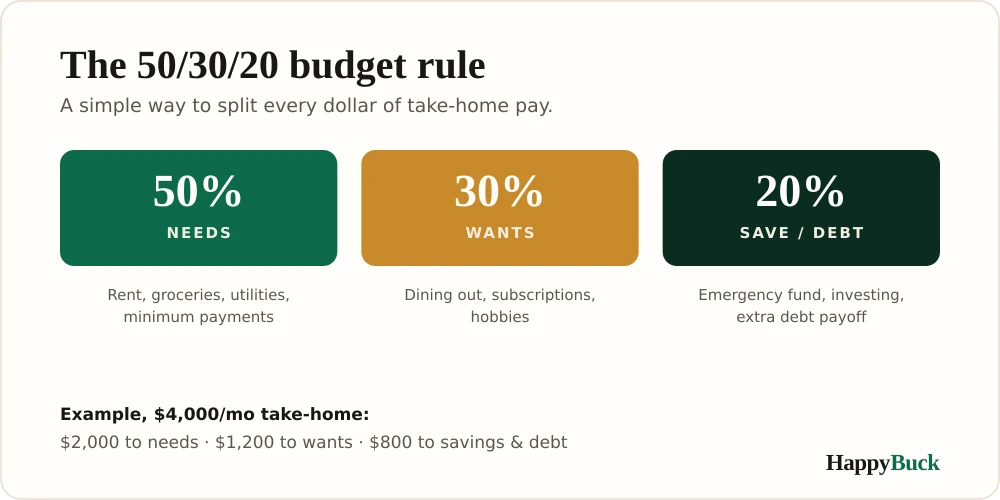
Add three cells that calculate the targets straight from your income:
=B3*0.5for needs=B3*0.3for wants=B3*0.2for savings and debt
Then compare each section’s subtotal to its target. If one is running hot, you’ll see it instantly.
Budget from your phone
This is the part Excel can’t match as easily. Install the Google Sheets app, open your budget, and you can punch in a purchase while you’re still standing in line. The fewer steps between spending money and recording it, the more likely you are to do it. A budget you update in the moment beats a perfect one you try to reconstruct from memory on Sunday night.
Google Sheets vs Excel: which should you use?
Either works, and the formulas are identical. Use Google Sheets if you want it free, auto-saved, shareable, and on your phone. Use Excel if you already own it or you work offline a lot. The best one is the one you’ll actually open.
Common mistakes (and where it falls short)
- Too many categories. Fifteen line items you’ll never track is worse than five you will. Start broad.
- Skipping the Actual column. The plan is half the value. Recording what you spent is where the learning happens. Give it five minutes a week.
- Ignoring irregular bills. Car registration, the annual insurance premium, the holidays. Add a “sinking funds” row and set a little aside each month so they don’t wreck an otherwise good month.
The real limit is this: a spreadsheet only works if you open it. If even the phone app feels like too much, a budgeting app that imports transactions automatically might be worth the subscription. There’s no prize for doing it the hard way.
A faster start: copy our free template
Don’t want to build from a blank sheet? Grab our template. It already has the 50/30/20 sections, the subtotal formulas, and the planned-versus-actual columns wired up.
Download the free HappyBuck budget template
To use it in Google Sheets, download the file, then in Sheets choose File > Import > Upload and pick it. Sheets converts it automatically, and you’re budgeting in a couple of minutes.
More from HappyBuck
- New to all this? Start with the full guide to budgeting for beginners.
- Build the emergency fund your budget is quietly funding.
- Carrying balances? Here’s how to pay down high-interest debt.
A budget in Google Sheets is free, hard to lose, and always in your pocket. Set it up once, log spending as you go, and let the formulas keep score. For official worksheets to compare against, the Consumer Financial Protection Bureau has free versions too.


